Translations: "Italiano" |
Ekahau Custom Template
Introduction
Ekahau Survey Pro is an excellent software tool for the analysis and design of wireless infrastructure. It is one of the most used tool for wireless surveys. It combines relevant measurement features with a quick and easy-to-use graphic interface.
Compiling a report with the analysis results, is a relevant part of a wireless survey, that need to be presented to the customer. For a network engineer, usually, this task takes time and it is a bit boring, even if very important. Hence the need to have a tool that allows you to automate this task and speed it up. In this case, Ekahau is very useful thanks to the possibility of using a custom template.
In fact, it is usually possible to generate a generic report (one-click reporting) by selecting the parts of the analysis that are of interest. Usually, the generated results are then taken and pasted on a document that has the layout required by the own company.
Ekahau, in addition to the possibility of generating a generic report, gives you the possibility to use a custom template in .docx format, compiled with appropriate tags, which are then processed by the software to insert the results as required. Let's see in more detail how the customized Ekahau template works.
Custom Template
The use of customized templates for reports is well documented on Ekahau website
As mentioned, you can create a customized template, starting from the official document edited by your company, with custom layout parameters such as fonts, images, etc.
Starting from this document, the standard sections can be left unaltered, i.e. sections in which there is no data obtained from the software. An example of this sections can be the introduction to your company, the standards used, etc. For the other sections, instead, you can then insert the necessary tags, which will be processed by the software to insert the necessary collected information.
Tags are specified through the use of the "<#" and "#>" markers. Any document content that is outside these markers will not be touched by Ekahau. Furthermore, Ekahau uses the JSON format for tags. JSON, nowadays, is widely used and easy to read.
If it is even not enough, Ekahau allows you to copy the necessary tags, directly from the data currently displayed on the software, through the section "Reporting -> Template Reporting -> Copy Current Visualization's Template Tag to Clipboard", thus offering you a quick customization tool of reports.
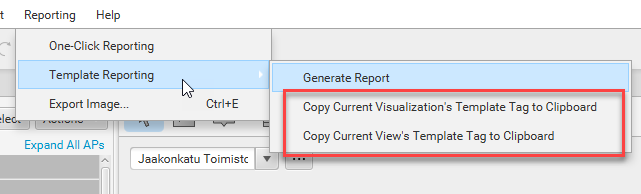
Finally, inside the "Documents Folder / Ekahau Pro / Report Templates" folder there are already a series of templates from which you can take inspiration.
Below, I report my direct experience with writing a custom template.
My experience with custom template
Until recently, when I wrote reports, I proceeded by generating "one click reporting". I then went to fill out the document used by my company for surveys, inserting the necessary images and information, copying and pasting them from one-click reporting. This process, however, took me a considerable and unnecessary time, as well as lead to possible copy and paste errors.
I had already heard from colleagues the possibility of using custom templates, but I had never investigated it, because I thought it was a time consuming process and that it required the compilation of files totally in some markup language such as html.
Once I discovered, however, that using custom template, simply means to take the word file in .docx format and going to replace the parts I copied manually, with tags in JSON format, I felt stupid not to have done it since the first time I started using Ekahau.
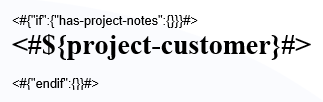
I therefore started from the Word document with the layout of my company and tried to insert, as much as possible, the equivalent tag for the graphics and for the parts that contained customer information. For example, on the first page, the name of the company that requested the survey was reported. I automated the compilation of the company name, by entering the "Project Customer" information in the software and then entering the tag <# $ project-customer #>, as shown below
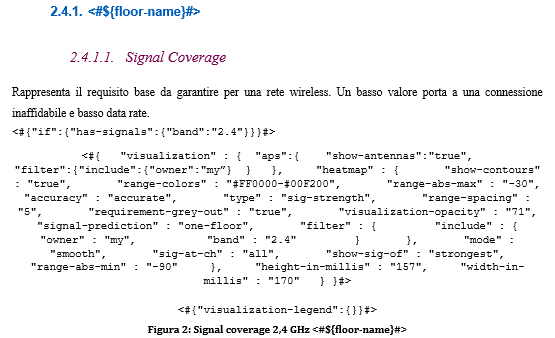
Another section that I always entered manually and that I then automated, is the insertion of the graphics with their captions, creating a loop for each floor plan. I, then, took to get the useful tags directly from the template used by the "one-click reporting". For example, for the signal strength graph, I inserted the following tags
Once the report with the custom template has been generated, I recommend selecting all the text (CTRL+A) and updating the summary, in order to correct the numbers of the captures and the summary. In fact, using tags in the titles of some sections, in the summary, if I don't go to update, the tag is returned to me, instead of its value.

Finally, what remains to be completed and which cannot be automated, is the explanation of the obtained results and the possible action to be taken. This is the real added value of the network / wireless engineer, compared to software alone (fortunately).